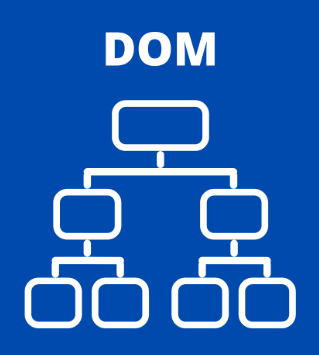
앞에서 DOM에 대해 알아봤으니 이제 DOM이 어떻게 작동하는지 이야기 해보자
코드는 작성하겠지만 예제가 많은 관계로 동작이 궁금하신 분들은 코드복사하여 직접 실행 해보시길 권장 드린다.
✅ 예제 1: 버튼 클릭 시 텍스트 바꾸기
<p id="desc">기존 텍스트</p>
<button onclick="changeText()">텍스트 변경</button>
<script>
function changeText() {
const p = document.getElementById("desc");
p.textContent = "변경된 텍스트!";
}
</script>
p 태그는 id ="desc" 로지정
<button></button> : 버튼 생성
<button onclick="changeText()"> : 버튼 클릭시 함수 실행
<script> </script> : 스크립트 생성
function changeText( ) { } : button 클릭시 진행될 명령에 대한(텍스트 변경)의 함수 생성
document.getElementById("desc"); : HTML 문서내 body 파트 부분에서 Id="desc" 의 요소를 불러오기
p.textContent = "변경된 텍스트!"; : p태그에 있는 텍스트(기존텍스트)를 지정된 텍스트(변경된 텍스트!)로 변경
핵심 개념 :
getElementById: 요소 선택
textContent : 내용 변경
✅ 예제 2: 버튼 클릭 시 배경색 바꾸기
<body>
<button onclick="changeBg()">배경 바꾸기</button>
<script>
function changeBg() {
document.body.style.backgroundColor = "#f0f8ff";
}
</script>
</body>
✅ 예제 3: 이미지 교체하기
<img id="photo" src="img1.jpg" width="200">
<button onclick="changeImage()">사진 변경</button>
<script>
function changeImage() {
const img = document.getElementById("photo");
img.src = "img2.jpg";
}
</script>
✅ 예제 4: 클래스 추가/제거 (toggle)
<p id="msg">알림 메세지</p>
<button onclick="toggleHighlight()">하이라이트 토글</button>
<style>
.highlight {
background-color: yellow;
font-weight: bold;
}
</style>
<script>
function toggleHighlight() {
const p = document.getElementById("msg");
p.classList.toggle("highlight");
}
</script>
✅ 예제 5: 새 요소 만들기 (항목 추가)
<p id="msg">알림 메세지</p>
<button onclick="toggleHighlight()">하이라이트 토글</button>
<style>
.highlight {
background-color: yellow;
font-weight: bold;
}
</style>
<script>
function toggleHighlight() {
const p = document.getElementById("msg");
p.classList.toggle("highlight");
}
</script>
✅ 예제 6: 입력값 받아서 표시
<input type="text" id="username" placeholder="이름을 입력하세요">
<button onclick="sayHello()">인사하기</button>
<p id="output"></p>
<script>
function sayHello() {
const name = document.getElementById("username").value;
document.getElementById("output").textContent = `안녕하세요, ${name}님!`;
}
</script>
✅ 예제 7: 리스트 항목 삭제하기
<ul id="todo">
<li>공부하기 <button onclick="removeItem(this)">삭제</button></li>
<li>운동하기 <button onclick="removeItem(this)">삭제</button></li>
</ul>
<script>
function removeItem(button) {
const li = button.parentElement;
li.remove();
}
</script>
✅ 예제 8: input 값이 비어있으면 경고 표시하기
<input type="text" id="email" placeholder="이메일 입력">
<button onclick="checkInput()">제출</button>
<p id="warn" style="color:red;"></p>
<script>
function checkInput() {
const email = document.getElementById("email").value;
const warn = document.getElementById("warn");
if (email === "") {
warn.textContent = "이메일을 입력하세요!";
} else {
warn.textContent = "";
}
}
</script>
✅ 예제 9: 여러 요소 스타일 변경
<p class="item">항목 A</p>
<p class="item">항목 B</p>
<p class="item">항목 C</p>
<button onclick="highlightAll()">모두 강조</button>
<script>
function highlightAll() {
const items = document.querySelectorAll(".item");
items.forEach((el) => {
el.style.backgroundColor = "lightgreen";
});
}
</script>
✅ 예제 10: hover(마우스 올리기) 이벤트 처리
<p id="hoverTarget">마우스를 올려보세요</p>
<script>
const target = document.getElementById("hoverTarget");
target.addEventListener("mouseover", () => {
target.style.color = "blue";
});
target.addEventListener("mouseout", () => {
target.style.color = "black";
});
</script>
✅ 예제 11: 버튼 누를 때마다 숫자 증가
<p>현재 점수: <span id="score">0</span></p>
<button onclick="increaseScore()">+1</button>
<script>
let count = 0;
function increaseScore() {
count++;
document.getElementById("score").textContent = count;
}
</script>
✅ 예제 12: 동적 요소 생성 후 이벤트 연결
<button onclick="addButton()">버튼 추가</button>
<div id="buttonArea"></div>
<script>
function addButton() {
const newBtn = document.createElement("button");
newBtn.textContent = "새 버튼";
newBtn.onclick = () => alert("새 버튼 클릭!");
document.getElementById("buttonArea").appendChild(newBtn);
}
</script>
✅ 예제 13: 선택한 항목 배경색 바꾸기
<ul>
<li>항목1 <button onclick="highlight(this)">선택</button></li>
<li>항목2 <button onclick="highlight(this)">선택</button></li>
</ul>
<script>
function highlight(btn) {
btn.parentElement.style.backgroundColor = "yellow";
}
</script>
✅ 예제 14: 체크박스 전체 선택/해제
<input type="checkbox" id="checkAll" onclick="toggleAll(this)"> 전체 선택<br>
<input type="checkbox" class="item"> 항목 A<br>
<input type="checkbox" class="item"> 항목 B<br>
<script>
function toggleAll(master) {
const items = document.querySelectorAll(".item");
items.forEach((box) => {
box.checked = master.checked;
});
}
</script>
✅ 예제 15: 입력된 값 실시간 미리보기
<input type="text" id="nickname" placeholder="닉네임 입력">
<p>미리보기: <span id="preview"></span></p>
<script>
const input = document.getElementById("nickname");
const preview = document.getElementById("preview");
input.addEventListener("input", () => {
preview.textContent = input.value;
});
</script>
✅ 예제 16: 다크모드 전환 버튼
<style>
.dark-mode {
background-color: #222;
color: white;
}
</style>
<button onclick="toggleMode()">다크모드 전환</button>
<script>
function toggleMode() {
document.body.classList.toggle("dark-mode");
}
</script>
✅ 예제 17: 태그 안의 텍스트 가져오기
<h1 id="title">자바스크립트 배우기</h1>
<button onclick="showTitle()">제목 확인</button>
<script>
function showTitle() {
const title = document.getElementById("title").textContent;
alert("제목: " + title);
}
</script>
✅ 예제 18: form 제출 막기
<form onsubmit="return validateForm()">
<input type="text" id="user" placeholder="이름 입력">
<button type="submit">전송</button>
</form>
<script>
function validateForm() {
const name = document.getElementById("user").value;
if (name === "") {
alert("이름을 입력하세요.");
return false; // 전송 막기
}
return true;
}
</scrip
✅ 예제 19: 이미지 클릭 시 변경하기
<img id="mainImg" src="img1.jpg" width="200" onclick="changeImage()">
<script>
function changeImage() {
const img = document.getElementById("mainImg");
img.src = "img2.jpg";
}
</script>
✅ 예제 20: 키보드 입력 감지
<p>입력된 키: <span id="key"></span></p>
<script>
document.addEventListener("keydown", (event) => {
document.getElementById("key").textContent = event.key;
});
</script>
✅ 예제 21: 요소에 클래스 추가 및 제거
<p id="target">이 텍스트에 스타일을 적용합니다.</p>
<button onclick="addStyle()">스타일 추가</button>
<button onclick="removeStyle()">스타일 제거</button>
<style>
.highlight {
color: white;
background-color: teal;
padding: 5px;
}
</style>
<script>
function addStyle() {
document.getElementById("target").classList.add("highlight");
}
function removeStyle() {
document.getElementById("target").classList.remove("highlight");
}
</script>
✅ 예제 22: 현재 날짜와 시간 표시
<p>현재 시간: <span id="now"></span></p>
<script>
const now = new Date();
document.getElementById("now").textContent = now.toLocaleString();
</script>
✅ 예제 23: input 엔터 키로 제출하기
<input type="text" id="message" placeholder="메시지 입력">
<script>
const input = document.getElementById("message");
input.addEventListener("keydown", function(event) {
if (event.key === "Enter") {
alert("입력한 메시지: " + input.value);
}
});
</script>
✅ 예제 24: DOMContentLoaded 이벤트 사용
<p id="readyText"></p>
<script>
document.addEventListener("DOMContentLoaded", () => {
document.getElementById("readyText").textContent = "문서가 준비되었습니다!";
});
</script>
✅ 예제 25: 이미지 슬라이드(배너) 만들기
<img id="slider" src="img1.jpg" width="300">
<script>
const images = ["img1.jpg", "img2.jpg", "img3.jpg"];
let index = 0;
function slideShow() {
index = (index + 1) % images.length;
document.getElementById("slider").src = images[index];
}
setInterval(slideShow, 2000); // 2초마다 이미지 변경
</script>
'프로그램 언어 > JavaScript Dom Part' 카테고리의 다른 글
| [J.S_DOM] 3. 요소의 내용/속성 변경하기 (textContent, innerHTML, setAttribute 등) (1) | 2025.08.08 |
|---|---|
| [J.S_DOM] 2-1. DOM 요소 선택 메서드 예제 (1) | 2025.08.08 |
| [J.S_DOM] 2. DOM 요소 선택하기 (getElementById, querySelector 등) (1) | 2025.08.08 |
| [J.S_DOM] 1. DOM이란? (2) | 2025.08.08 |
| [J.S_DOM] INTRO. DOM (2) | 2025.08.08 |